Getting the Atmega32U4 to Produce a Mouse Click
In the previous post, I was able to successfully program the Atmega board. Now it’s time to get the board to produce a mouse click using a simple circuit with a push button switch.
There are a couple of examples of using this development board, or similar, as a mouse:
- The ButtonMouseControl example in the Arduino IDE
- USB Mouse Functionality from sparkfun
I’m not going to start with them as they often have a more complete mouse setup going and I want to build up one piece at a time. This build up from scratch is so that I can better understand each piece since I will be moving over to the EX-G hardware which may behave differently than the examples.
A Circuit with a Light and Switch
I have a basic familiarity with simple analog circuits. A common one to start reasoning about is a switched light.
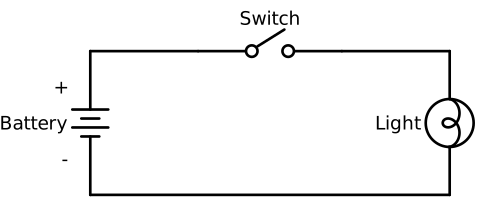
The diagram shows a battery with the positive side connected to one side of a switch. The other side of the switch connects to a light. The light connects back to the ground side of the battery.
The switch in the diagram is open. This prevents the flow of electricity from the battery through the light.
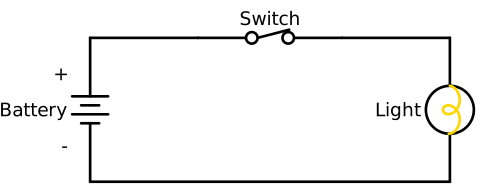
With the switch in the closed position, electricity is now able to flow from the battery through the light, lighting it up.
The Mouse Click Circuit
Taking my understanding of the above light diagram I want to create a circuit
where the VCC pin goes to one side of a push button. The other side of the
push button will connect to pin 9 of the Atmega board.
The VCC pin of the Atmega is a 5V output. Any of the pins 0-21 can be used as
inputs or outputs. I just happened to choose pin 9.
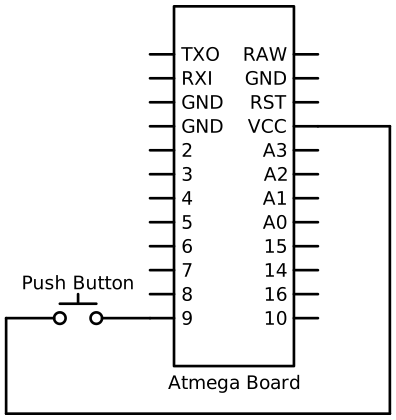
The idea is that pin 9 will be programmed to be an input. The main loop will
ll look for pin 9 going HIGH, meaning it has voltage applied to it. The act
of going HIGH will be treated as a mouse press. When the push button is
released, the pin will go LOW, which will signify the mouse button being
released.
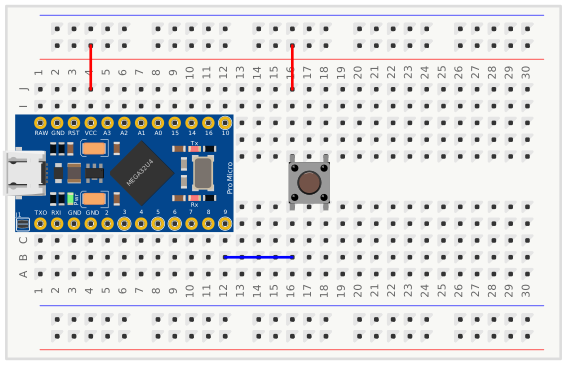
Here’s how wiring up this circuit will look:
The code that I’m going to use is:
#include <Mouse.h>

int clicked = false;
int mouseClickButton = 9;
void setup() {
  pinMode(mouseClickButton, INPUT);
  Mouse.begin();
}

void loop() {
  bool high = digitalRead(mouseClickButton) == HIGH;
  if (high && !clicked)
  {
    clicked = true;
    Mouse.press();
  }
  else if (!high && clicked)
  {
    clicked = false;
    Mouse.release();
  }
}
The Arduino libraries already provide a mouse interface. Including the header
file.is all that’s needed to start working as a mouse. One thing to note, is
that Mouse.begin() needs to be called as part of the setup().
The code starts out not clicked, or unpressed, and sets pin 9 as an input.
During the loop phase, the code will check to see if pin 9 is HIGH. If pin
9 is HIGH and the button isn’t currently clicked it will send a mouse
press to the computer. This code is using the default press value of
MOUSE_LEFT. If pin 9 isn’t HIGH, the code checks to see if the mouse
was previously pressed and if so, it will release it.
The code compiles. I upload the code to the Atmega board. Then I press the button and nothing happens…
While scratching my head and trying to debug I pull the wire connecting pin 9 to
the button, out from the button row, the blue wire in the pictorial above. While
doing this an LED on the Atmega board flashes and I can see that the text under
my cursor on my computer has been selected. I got a button press!! Not the
correct button press or when I wanted it to happen, but a press none the less.
I notice if I leave the blue wire disconnected from the button, and just move it around or my hands near it, not even touching it, then I get button presses. This has me a bit flabbergasted. I do an internet search for “atmega32U4 input goes high by waving hand” and eventually land on a good article from sparkfun, Pull-up Resistors.
I mentioned above that I had a basic familiarity with simple analog circuits.
The circuits I’m familiar with generally have some kind of load on them, a
light, a motor, etc. While I understood that digital circuits often have signal
lines, the LOW and HIGH values. I didn’t think about the fact that these
aren’t pulling much current. It’s possible for these signal lines to pick up any
kind of electrical noise if they aren’t provided a pull-up or pull-down to force
the state.
Adding a Pull-Down Resistor
While the article from sparkfun focused on pull-up resistors, I’m going to use a pull-down to minimize the overall changes to code and the circuit. The article also mentions that some micro controllers contain internal pull-up resistors. The Atmega32U4 does, according to its data sheet. I’m still going to use an external pull-down resistor for this portion of development just to be sure I’m doing things correct.
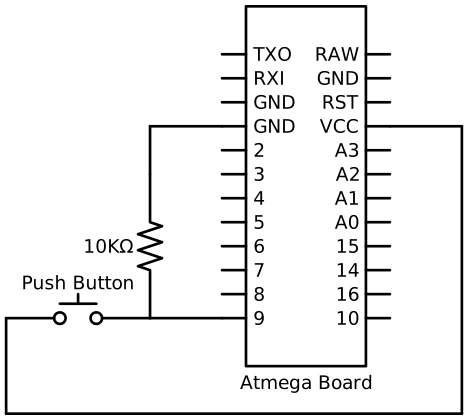
The new wiring diagram with a 10kΩ pull-down resistor:
The updated bread board pictorial:
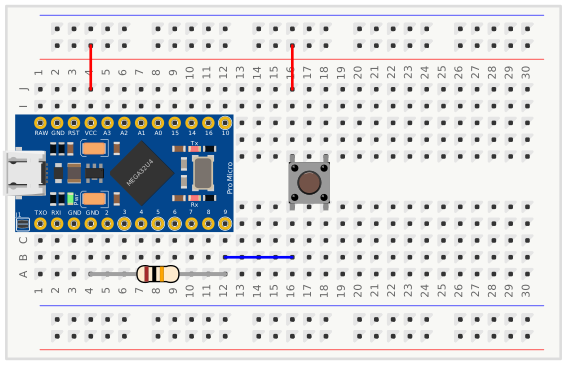
No changes are needed in the code. It’s time to plug the board back into my computer and see if the mouse button works. I press the button and nothing happens.
This one took a little bit to debug. I ended up pulling out a digital
multi-meter and inspecting the push button. I had misunderstood its connections.
The way I had it plugged into the bread board the push button was actually
bridging the two 16 rows together and the two 18 rows together. So the pin 9
was always HIGH. I ended up moving the blue wire down to row 18, as depicted
in the below pictorial.
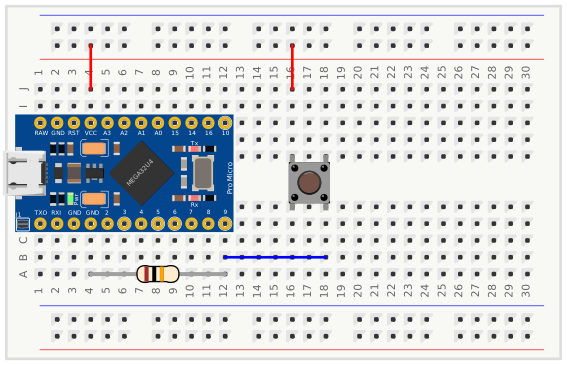
After this change, I finally have a working left mouse click via the Atemga board. If I hold the button down it behaves just as if I had held the lift click down on a normal mouse. I can select text or drag and drop things.
Most of the iconography in the above diagrams are from the python schemdraw package.
The Pro Micro (Atmega32U4) used in the bread board diagrams is from https://forum.fritzing.org/t/part-arduino-pro-micro-clone/10680.
The push button used in the bread board diagrams is from the Fritzing App.